Locations
What are Locations?
In Lineup Ninja, Locations are the places where sessions take place. These are otherwise known as stages, rooms, theatres, conference halls, areas, venues and virtual spaces.
You will need to configure at least one Location to view the Agenda Planning Board.
Tip
For more information about Locations & Scheduling, please follow this link.
How do I create and manage Locations?
- Navigate to > to bring up the Locations list view
- To create a new location, click at the top right of the table
- Enter a name for the location
- You can optionally add a capacity to the Location at this time
- If you have configured , or , you can associate them with the Location now, by choosing them from a drop-down list in the relevant column
- Click to save the Location
- Once you have created your location, you can navigate into the Location by clicking the name to configure additional settings and upload various files associated with the Location (including sponsor images that you may need in the Agenda App or Digital Signage)
How do I change Locations’ availability?
When Locations are created, they take their availability from the event’s opening times. You can edit this in a couple of ways.
To change a single location’s availability:
- Navigate to > to bring up the Locations list view
- Click into the Location you wish to edit
- Scroll to ‘Location’s Timeline’ where there is a blue stripe that represents the availability of the Location
- You can adjust the availability of the location by using to drag the ends of the blue stripe up and down
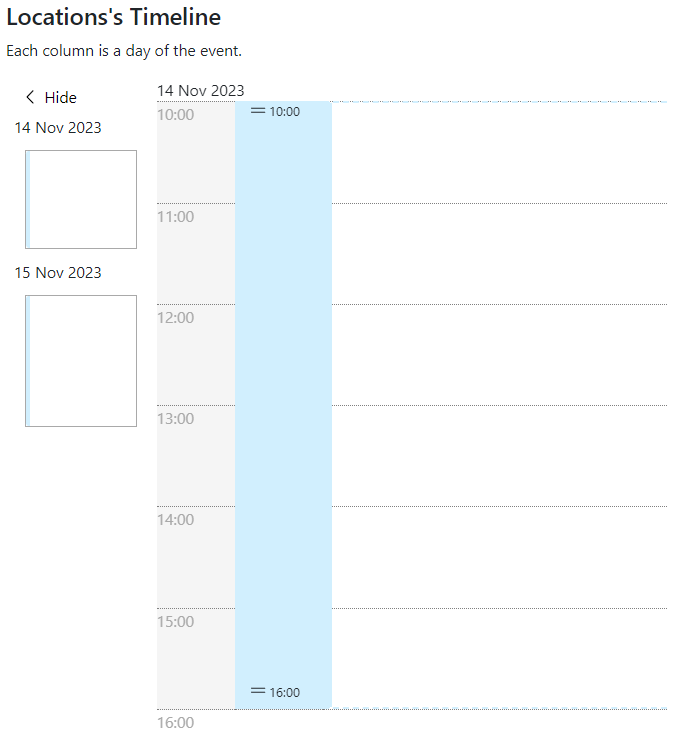
To change multiple locations’ availability at the same time:
- Navigate to > to bring up the Locations list view
- Select the relevant locations using the tick boxes on the left-hand side, then open the ‘Actions’ menu at the top left of the table
- Select ‘Make locations available’
- A pop-up will appear asking you to choose the date and times you wish to make the Locations available
How do I add a break to a location?
- Navigate to > to bring up the Locations list view
- Click into the Location you wish to edit
- Scroll to ‘Location’s Timeline’ where there is a blue stripe that represents the availability of the Location
- Click to add a second blue availability window and adjust to the available times of the location. They grey area indicates the break
Tip
To delete, merge one stripe with another blue stipe.
How do I set/change a Location’s capacity?
- Navigate to > to bring up the Locations list view
- Click next to the Location you wish to change
- Enter the Location’s capacity in the capacity column
How do I make Resources available in a Location?
You can manage the Resources that a Location has in two ways.
From the list of Locations:
- Navigate to > to bring up the Locations list view
- Click into the Location you wish to edit
- Click straight onto the ‘Resources’ value — or ‘Edit’ at the top right — add the Resources associated with that Location, and click ‘Save’
From the list of Resources:
- Navigate to > to bring up the Locations list view
- Click into the Resources you wish add Locations to
- Click straight onto the ‘Locations’ value — or ‘Edit’ at the top right — add the Locations associated with that Resource, and click ‘Save’
How do I add Locations to Labels, Tracks and Resources in bulk?
- Navigate to Agenda Planning and to the type of item you wish to add the Location to. This will bring us the respective list view
- Tick the items you wish to add the Location to
- Open the ‘Actions’ menu at the top left of the table and click ‘Add Locations’
How do I set which tracks are running in a location?
You can manage the Tracks that are associated with a Location in two ways.
From the list of Locations:
- Navigate to > to bring up the Locations list view
- Click into the Location you wish to edit
- Click straight onto the ‘Tracks’ value — or ‘Edit’ at the top right — add the Tracks associated with that Location, and click ‘Save’
From the list of Tracks:
- Navigate to > to bring up the Locations list view
- Click into the Tracks you wish to add Locations to
- Click straight onto the ‘Locations’ value — or ‘Edit’ at the top right — add the Locations associated with that Track, and click ‘Save’
Next: Speakers
Still can’t find what you’re looking for? Email support@lineupninja.com and one of the team will get back to you as soon as possible.